Forecast Rollup Methods for Sales Ops: Choose and Configure

Forecast rollup methods determine how your CRM aggregates individual deal values up through rep, team, and organizational levels, and for most B2B SaaS sales teams, single-category rollups are the right default. They keep each forecast category (Commit, Best Case, Pipeline) independent, which means you can hold reps accountable to a specific number without the ambiguity that comes from stacked totals.
Three reasons single-category is usually the better starting point:
- Accountability is cleaner. Each rep owns a Commit number that stands alone, not a blended total that obscures whether they’re sandbagging Best Case or inflating Pipeline.
- Signal quality is higher. When categories don’t bleed into each other, forecast drift is easier to spot and diagnose.
- Executive visibility is easier to build on top. You can always add a cumulative column for the CRO without changing the underlying rollup logic.
Switch to cumulative rollups when your executive team needs a single “total expected revenue” figure that includes Commit plus Best Case in one column, or when your hierarchy is flat enough that double-counting risk is low. A two-tier org (reps report directly to a VP) that has clean stage mapping is a reasonable candidate.
Pro Tip: Run both views simultaneously during any transition. Keep single-category as your operational rollup and add a cumulative column as a read-only executive view. That way you never sacrifice accountability for simplicity.
Key Takeaways
Choosing single-category rollups as your operational default and layering cumulative columns for executive visibility gives sales ops teams both accountability and simplicity without sacrificing either.
| Point | Details |
|---|---|
| Default to single-category | Single-category rollups preserve per-category accountability and make forecast drift easier to diagnose. |
| Add cumulative for executives | Enable cumulative columns as a read-only view for leadership without changing the operational rollup logic. |
| Audit stage-to-category maps | Stale stage mappings silently corrupt rollup totals; review them at least quarterly. |
| Snapshot before switching modes | Switching rollup modes in Salesforce deletes active adjustments; export everything before changing settings. |
| Trailercast improves input quality | Trailercast’s CRM sync and conversation intelligence reduce stale commits by grounding rep inputs in verified deal activity. |
Vendor docs and forecasting research worth reading next
- Select a Pipeline Forecast Rollup Method (Salesforce Help) — the exact admin UI path and the adjustment-deletion warning, straight from Salesforce.
- Forecast Rollup Methods Overview (Salesforce Help) — vendor-grade definitions of single vs. cumulative with category behavior explained.
- Configure a Forecast Using Custom Rollup Entity (Microsoft Docs) — essential if your Dynamics data model uses non-standard objects or multi-entity revenue structures.
- Forecasting: Principles and Practice, Chapter 11 (otexts) — the authoritative textbook treatment of bottom-up, top-down, and middle-out reconciliation methods.
- Bottom-Up Forecast Definition (Fairview) — a concise primer on why bottom-up is preferred for near-term accuracy and how stage probabilities feed it.
- Roll-Up Forecast: Definition, Process & Pitfalls — covers compounding optimism, calibration needs, and why cadence matters as much as configuration.
- AI Sales Forecasting: A Practical Playbook — practical guidance on augmenting pipeline rollups with AI-driven forecast signals and automated bias detection.
Table of Contents
- What are forecast rollup methods, exactly?
- How rollup choices interact with hierarchical forecasting
- Single vs. cumulative: how to choose the right rollup
- Where to configure rollup settings in Salesforce, Outreach, and Microsoft Dynamics
- How to validate your rollup configuration
- Better rollup signal starts with better deal data
- Sources
What are forecast rollup methods, exactly?
The two vendor-standard modes show up across every major CRM, and the difference between them is not subtle once you see it in numbers.
Single-category rollup aggregates opportunities within each forecast category independently. Your Commit total is the sum of all deals categorized as Commit. Your Best Case total is the sum of all Best Case deals. The two numbers never overlap.
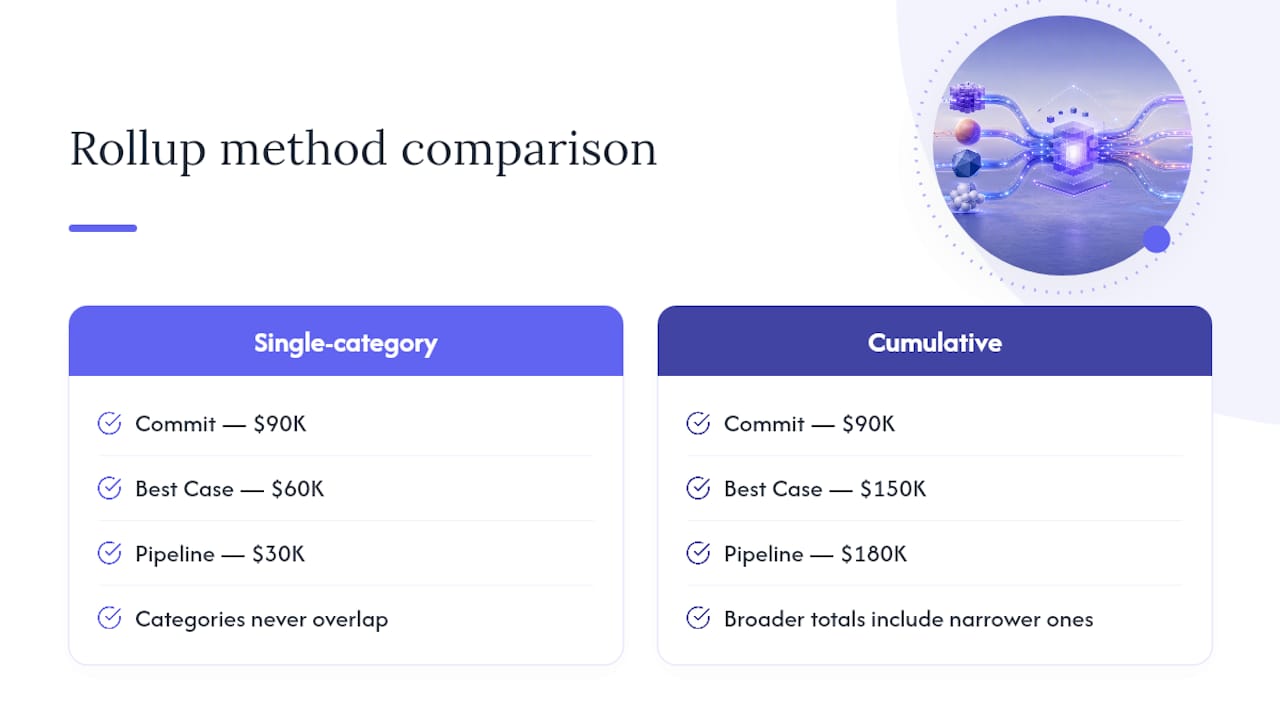
Cumulative rollup stacks categories so that broader totals include narrower ones. Best Case includes Commit. Pipeline includes Best Case, which already includes Commit. The result is one headline number per level, but that number contains everything below it.
Here’s a compact example with three reps:
Under single-category, the team totals are: Commit $90K, Best Case $60K, Pipeline $30K. Each column is independent.
Under cumulative, the team totals read: Commit $90K, Best Case $150K (Commit + Best Case), Pipeline $180K (Commit + Best Case + Pipeline). The CRO sees $180K as the upside ceiling, not $30K.
Neither number is wrong. They answer different questions. Single-category answers “what did reps commit to?” Cumulative answers “what’s the maximum we could close if everything breaks right?”
How forecast categories map
Standard category hierarchies typically run: Commit → Best Case → Pipeline → Omitted. Omitted deals are excluded from all rollups. The stage-to-category mapping, which determines which pipeline stage triggers which forecast category, is where most rollup errors originate. A deal sitting in “Proposal Sent” that maps to Commit because someone forgot to update the mapping will inflate your Commit total every single week.
One immediate consequence worth flagging: switching rollup modes in Salesforce deletes adjustments for active forecast types. That’s not a warning to read past. Snapshot everything before you touch the setting.
How rollup choices interact with hierarchical forecasting
Choosing a rollup mode is really a decision about aggregation order, and that connects directly to the forecasting literature on hierarchical methods.
Bottom-up, top-down, and middle-out approaches each pair differently with your rollup configuration:
- Bottom-up starts at the deal level, rolls up through reps to teams to org. Single-category rollups are the natural fit here because each level’s total is independently verifiable. Bottom-up forecasting is generally more accurate for near-term quarters because it’s grounded in actual pipeline data and stage-based probabilities.
- Top-down starts with an organizational target and disaggregates it down to territory or rep quotas using historical proportions. Cumulative rollups align better here because the executive total is the anchor, and everything below it is a share of that number.
- Middle-out combines both: a regional or segment-level forecast is set independently, then aggregated upward and disaggregated downward simultaneously. This is where hybrid rollup configurations earn their keep.
Forecast coherence is the requirement that numbers add up consistently across levels. If your rep-level Commit totals don’t match your manager-level Commit total, you have a coherence problem, and it usually traces back to a misconfigured rollup or a manager adjustment that wasn’t reconciled.
It usually means either your stage-to-category mapping is stale or your quota-setting assumptions don’t reflect current pipeline composition.*
Reconciliation methods from the forecasting literature offer three practical approaches: proportional disaggregation (split the top-down target using historical rep-level shares), historical-distribution disaggregation (use rolling averages of past category splits), and a combined reconcile approach that minimizes the squared differences between bottom-up actuals and top-down targets. You don’t need to implement these algorithmically. Running them in a spreadsheet quarterly is enough to catch structural drift.
Single vs. cumulative: how to choose the right rollup
The honest answer is that most sales ops teams should start with single-category and add cumulative as a supplementary view. But the decision has real trade-offs worth mapping out.
Single-category rollups
Pros:
- Per-category accountability is explicit. Reps can’t hide a weak Commit behind a strong Pipeline.
- Easier to audit. When a number looks wrong, you know exactly which category to investigate.
- Manager adjustments are more meaningful because they apply to a specific category, not a blended total.
Cons:
- Executives often find three separate columns harder to read than one headline number.
- Requires more discipline in stage-to-category mapping to stay clean.
Cumulative rollups
Pros:
- One total per level is easier to present in board decks and QBR slides.
- Naturally shows upside range (Commit to Pipeline ceiling) without manual calculation.
Cons:
- Double-counting risk is real when categories overlap and reps don’t understand the logic.
- Harder to trace accountability. If the cumulative Best Case misses, which category caused it?
| Dimension | Single-category | Cumulative |
|---|---|---|
| Aggregation logic | Each category totaled independently | Categories stack into broader totals |
| Best for | Rep accountability, signal quality | Executive reporting, upside visibility |
| Impact on rollup totals | Smaller, cleaner per-category numbers | Larger headline totals that include sub-categories |
| Configuration complexity | Lower; default in most CRMs | Moderate; requires enabling and validating overlap logic |
| Reconciliation difficulty | Straightforward | Requires care to avoid double-counting |
Decision checklist:
- Do your managers review forecasts by category, or do they only care about one total? (Category review → single; total only → cumulative)
- Is your hierarchy more than two levels deep? (Deeper hierarchy → single-category is safer)
- Does your comp plan tie to a specific category like Commit? (Yes → single-category is non-negotiable)
- Does your CRO present one revenue number to the board? (Yes → add a cumulative column as a read-only view)
Hybrid configurations, where you run single-category as the operational rollup and enable cumulative columns for specific roles or report views, are the most common setup in mature revenue operations teams. Microsoft Dynamics supports custom rollup entities that make this kind of hybrid mapping straightforward for non-standard data models.
Where to configure rollup settings in Salesforce, Outreach, and Microsoft Dynamics
Salesforce
The setting lives in Setup → Forecasts Settings → Manage Forecast Rollups. From there, you can toggle between single-category and cumulative pipeline rollup columns per forecast type. The UI is available in Lightning Experience only.
The critical warning: switching rollup modes deletes adjustments for active forecast types. Export all manager adjustments before you make the change. This is not recoverable through standard UI.
Permission requirements: only System Administrators can access Forecasts Settings. Forecast managers can submit adjustments but cannot change rollup configuration. If you’re on Professional Edition, check whether your edition supports the forecast type you need before building a configuration plan around it.
Common pitfalls:
- Stage-to-category maps that were set up years ago and never audited. A “Negotiation” stage that maps to Pipeline instead of Commit will silently understate your Commit total.
- Enabling cumulative columns without communicating the change to reps. They’ll see different numbers in their forecast view and assume something broke.
- Forgetting to update rollup settings for all active forecast types, not just the primary one.
Outreach
Outreach’s forecast rollup presents to reps and managers through its Forecasting module. Reps submit category-level forecasts, and the rollup aggregates those submissions up through the management hierarchy. The rollup logic follows the category structure you configure, and managers can apply overrides at their level before the number rolls up further.
Outreach’s operational model means the rollup is only as good as rep submission discipline. A rep who hasn’t updated their forecast in two weeks is contributing stale data to every level above them. Weekly submission cadence with a hard deadline is the single highest-leverage process change most teams can make.
Microsoft Dynamics
Dynamics uses a forecast configuration wizard that lets admins define rollup columns, set the rollup entity (standard opportunity or a custom table), and map fields to forecast categories. Custom rollup entities are particularly useful for organizations with productized revenue models or multi-entity structures where the standard Opportunity object doesn’t capture the right data.
Pro Tip: In Dynamics, test your rollup configuration in a sandbox environment with a representative sample of opportunities before activating it in production. The custom entity mapping can produce unexpected totals when opportunity records have missing or null values in the rollup field.
How to validate your rollup configuration
Run this sequence after any rollup change, and also as a quarterly hygiene check.
- Snapshot the baseline. Before changing anything, export current forecast totals by category and by level (rep, team, org). Store them with a timestamp.
- Run a parallel view. Enable the new rollup mode in a sandbox or a separate forecast type. Compare totals side-by-side with the current production view for the same period.
- Audit stage-to-category mappings. Pull a report of all open opportunities grouped by stage and category. Any stage that maps to more than one category, or any opportunity with a null category, is a data-hygiene issue that will corrupt your rollup.
- Validate rep → team → org totals. Sum rep-level Commit figures manually and compare to the team-level total. Then sum team-level totals and compare to org-level. Any discrepancy points to a rollup logic error or a missing record.
- Confirm manager adjustment behavior. Submit a test adjustment in the new configuration and verify it appears correctly at the next level up. In Salesforce, adjustments behave differently under single vs. cumulative modes.
Worked reconciliation example
Rep B has one deal sitting in “Proposal Sent” that should be Best Case but maps to Pipeline because the stage-to-category rule was never updated. That $8K deal is understating Best Case and overstating Pipeline. It won’t show up as an error in the rollup, but it will show up as a miss when the quarter closes.

Backtesting: Pull four to eight quarters of closed data and replay your current rollup configuration against it. AI-augmented forecasting tools can automate this analysis, but a well-structured spreadsheet backtest catches most structural issues.
That’s almost always a manual override masking a stale classification, not a real pipeline movement.*
The rollup method that actually matters to leadership
Single-category rollups are the right operational foundation for most teams. The argument for cumulative is usually an executive-convenience argument, and convenience is a reasonable thing to optimize for, but not at the cost of signal quality.
The teams that get this right run single-category as their source of truth and add a cumulative column as a read-only view for leadership. They don’t let the executive view become the operational view. When those two things collapse into one, accountability erodes because nobody can trace a miss back to a specific category or a specific rep.
The other thing most guides don’t say clearly enough: your rollup method is only as good as your submission cadence. A weekly submission deadline with manager review, documented in your roll-up forecast process, does more for forecast accuracy than any configuration change. Stale commits compound through every level of the hierarchy. A rep who hasn’t touched their forecast in ten days is sending noise, not signal, to every manager above them.
Run both views. Enforce the cadence. Audit the mappings quarterly. That’s the whole playbook.
Better rollup signal starts with better deal data
The cleanest rollup configuration in the world still fails if the underlying rep inputs are stale, incomplete, or optimistic. That’s the gap most sales ops teams don’t close with configuration alone.
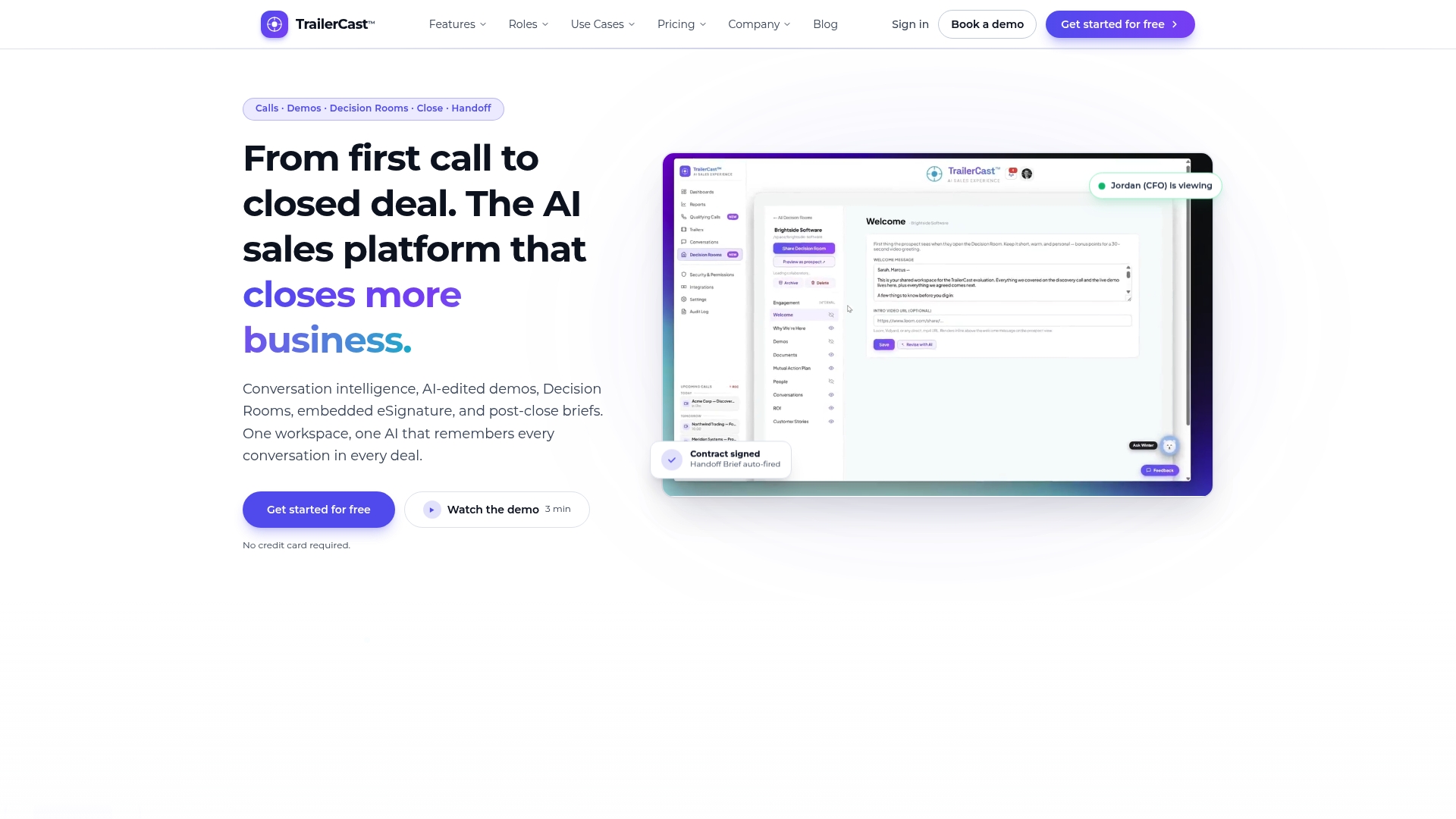
Trailercast captures conversation intelligence, demo highlights, and buyer engagement signals in one workspace, so the data feeding your CRM rollup reflects what’s actually happening in deals, not what reps remember to log. When a rep marks a deal as Commit, a manager can pull the last call summary, the demo trailer engagement, and the buyer’s activity in the decision room to validate that classification in under two minutes. That’s the difference between a rollup that reflects reality and one that reflects optimism.
For RevOps leaders focused on forecast signal quality, Trailercast’s CRM integration auto-logs calls, demos, and next steps directly to Salesforce and HubSpot, reducing the manual entry that introduces stale data into your rollup. The QBR brief automation also makes backtesting and reconciliation prep faster by surfacing deal-level context that would otherwise require digging through recordings.
Start a free trial at Trailercast and see how much cleaner your Commit column looks when every deal has a verified activity trail behind it.
Sources
- Select a Pipeline Forecast Rollup Method | Salesforce Help
- 11.2 Single level approaches | Forecasting: Principles and Practice (fpp3)
- Configure a forecast using custom rollup entity (Microsoft Docs)
- Bottom-Up Forecast: Definition — Fairview